Getting Started: Unreal Engine & HoloLens 2
·How-to·7 min read— views
This post provides a sequential list of things to do setup a project for the HoloLens 2 using Unreal Engine 4.27+.
***UE5 should be very similar but had bugs as of the original posting of this blog - we’ll give Epic a break though as UE5 had only been out a couple weeks!**
- Section 1: Getting Visual Studio ready for Unreal Engine
- Section 2: Ready Unreal Engine
- Section 3: Step-by-step recommendations for getting the project running
- Both for packaged projects and remoting from the computer to the HoloLens!
- Section “Last” :): Catch-all for troubleshooting issues that were encoutered.
Much of this information is derived from the excellent course “HoloLens 2 Mixed Reality Production for Unreal Engine” on the Unreal Engine Learning Portal. Definately check that out for more information or what to do next!
Getting Ready For Unreal Engine
- Download Visual Studio 2019 Community Edition
- Once installed, launch Visual Studio Installer and modify VS2019
- Select the following packages:
- Desktop Development with C++
- Game Development with C++
- .NET desktop development (may not be needed)
- Universal Windows Development Platform (may not be needed)
- Mobile Development with .NET (may not be needed)
- .NET cross-platform development (may not be needed)
- Under Individual Components, search for “ARM64”
- C++ Universal Windows Platform support for v142 build tools (ARM64) (enable)
- MSVC v142 - VS 2019 C++ ARM64 build tools (Latest) (enable)
- Select the following packages:
Setting Up Unreal Engine
- Download Unreal Engine 4.27+. Once installed select Options under the arrow symbol
Target Platforms >- HoloLens 2 (enable)
Setting Up the Unreal Engine Augmented Reality (AR) Project
-
Start Unreal Engine
- (Recommended) Select the template
Architecture, Engineering, and Construction > HoloLens Viewerwith options- No Starter Content
- Ray Tracing Disabled
- If not using the template, select a blank C++ project with the same options as above and “Scalable/Mobile”
- Name project as desired and open the project
- Note: This may take a while the first time the project is started
- (Recommended) Select the template
-
Setup Project Folders and Contents
- Add “Content/Main” folder
- Add “Main/Maps” folder, create a level named “Main”, and open the level
- In the level “Main”, from the “Place Actors” panel add
- A light source (e.g, “Directional Light”)
- Location:
(X=0.000000,Y=0.000000,Z=100.000000) - Rotation:
(Pitch=-30.000000,Yaw=30.000000,Roll=-60.000000)
- Location:
- An object (e.g., Cube) for testing purposes
- Location:
(X=50.000000,Y=0.000000,Z=0.000000) - Scale:
(X=0.100000,Y=0.100000,Z=0.100000) - Recommend setting the Cube to “Movable” to remove build lighting
- Location:
- “Player Start”
- Location:
(X=0.000000,Y=0.000000,Z=0.000000)
- Location:
- A light source (e.g, “Directional Light”)
- Under “Main” folder add
Miscellaneous>Data Asset>ARSessionConfigand rename it “AR_SessionConfig” - Add “Main/Blueprint” folder
- Add “Blueprint/Pawns” folder create
Blueprint Class>Pawn, rename it “BP_Pawn”, and open BP_Pawn- Add “Start AR Session” to Event > Begin Play
- Add “Stop AR Session” to Event > End Play
- Add other capabilities as desired (e.g., head orientation tracking, eye gaze tracking, hand indicators)
- Add “Blueprint/Pawns” folder create
- Add “Main/Core” folder and add
Blueprint Class> Game Mode Baseand rename it “GM_HoloLens”- Open and set “Default Pawn Class” to BP_Pawn
- Delete folders: “CollaborativeViewer” and “HoloLens_BP”
- Add “Content/Main” folder
-
Project Settings
Project > Description >- Start in VR (enable)
- Company Distinguished Name “CN=YOURNAME”
- Company Name “YOURNAME”
- Project Name “YOUR CHOICE”
Project > Maps & Modes >- Default GameMode to “GM_HoloLens”
- Change “Editor Startup Map” and “Game Default Map” to “Main”
Engine > Rendering >- Forward Shading (enable)
Platforms > Hololens >- Build for HoloLens Device (enable)
- Auto Increment Version (enable)
- Signing Certificate select “Generate New” (select “none” for password unless a password is desired)
- Auto-detect Windows 10 SDK (enable)
- Gaze Input (enable)
Platforms > Windows Mixed Reality >- Enable Remoting for Editor (enable)
- Requires restart before it can be used
- IP of HoloLens to remote to: IP address from HoloLens (may change on occasion)
- From Microsoft Store install the “Holographic Remoting Player” application
- Launch Holographic Remoting App and enter displayed IP address
- After restart, launching the Holographic Remoting App on the HoloLens 2, verifying the IP address, and the selecting “Connect” will pair with the HoloLens 2. The project can then be remoted to the HoloLens by selecting “Play > VR Preview” in the editor.
- UE5.0.1: editor crashing upon pushing “Connect”
- Enable Remoting for Editor (enable)
- If not already done, restart the editor
- Note: This may take a while the first time the project is restarted
- Note: Once started, take a nap while compiling shaders
-
Plugins
- In Windows Exlorer, add a “Plugins” folder in your project folder (same level as the
*.uprojectfile) - Required built-in plugins
- Hololens (already installed if using template)
- UE5: plugin not found. Believe to be already included
- Microsoft Windows Mixed Reality (already installed if using template)
- Hololens (already installed if using template)
- Optional built-in plugins
- Datasmith Capabilities (already installed if using template)
- Datasmith CAD Importer
- Datasmith Content
- Datasmith glTF Importer
- Datasmith Importer
- Datasmith Capabilities (already installed if using template)
- Third Party Plugins
- Microsoft UXTools
- url = https://github.com/microsoft/MixedReality-UXTools-Unreal
- branch = public/0.12.x-UE4.27
- Download the zip folder and extract
- From the extracted folder, go to
UXToolsGame\Pluginsand copy/cut the foldersUXToolsandUXToolsExamplesto your projects “Plugins” folder. - Restart your UE project, rebuilding when prompted.
- Note: After doing this I had to reset Auto-detect Windows 10 SDK to “enabled” again… weird
- Microsoft UXTools
- In Windows Exlorer, add a “Plugins” folder in your project folder (same level as the
-
Add some UX Tools capabilites for testing
- Open
Main/Blueprints/Pawns/BP_Pawnin the editor. - In the Event Graph attached to Begin Play add the UXT hand actors as shown in the figure. Then compile and save.
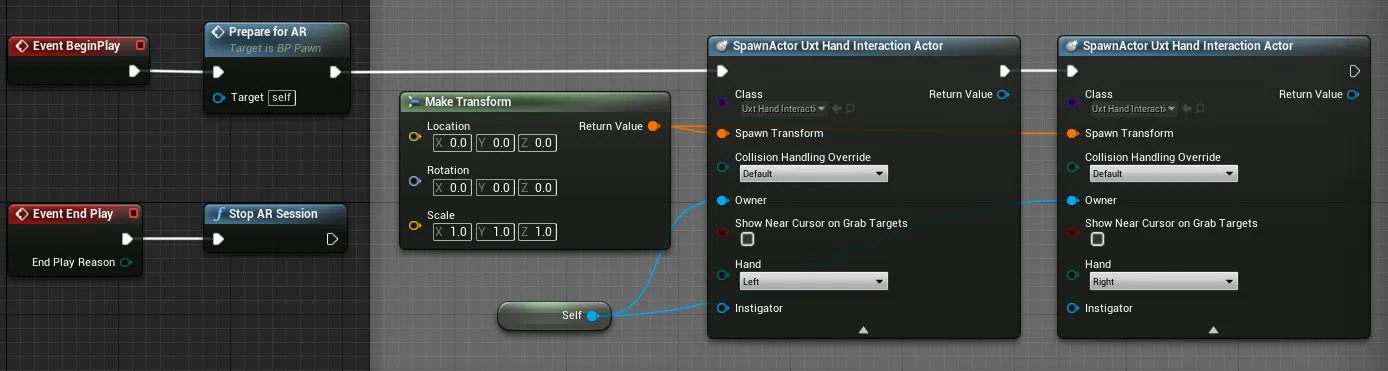
Note: Fancier things like collisions with objects will require something a little different and is covered in the UE Learning series mentioned in the introduction.
- Go the the “Main” level and select the Cube
- In the Details panel, select “Add Component” and search for and select “Uxt Generic Manipulator”. This Cube will now be able to be moved using a pinch motion with either hand.
- Open
-
Verify UX Tools is working
- Go to
Project Settings > Plugins > XR Tools. Here you can change the default meshes used for testing functionality with the editor without a HoloLens - Push Play (e.g., “Selected Viewport”). Two hands should appear!
- To move the hands hold down “shift” and/or “alt” and scroll or click with the mouse.
- To have a palm-up action, press the “Home” key while holding down “shift” and/or “alt”
- Go to
-
Verify HoloLens Remoting Works
- Connect to the HoloLens as stated above.
- Launch the level in the “VR Preview” mode
-
Verify Instalation to the HoloLens works (reuquires being connected to the same network)
- From the UE editor, go to
File > Package Project > HoloLensto create the packaged project. - In the HoloLens, say “What’s my IP address”
- Put that IP address into the browser and sign-in if prompted. This will launch the “Windows Device Portal” app.
- Go to
Views > Appsand select “Choose File”. - First install “Microsoft.VCLibs.arm64.14.00.appx” which was created.
- Only have to do this once on a HoloLens!
- Next, install the other
*.appxfile of your project. - Once installed, go to HoloLens main screen and select “All Apps” and select your app.
- From the UE editor, go to
-
Congratulations! From here you can build out the necessary functionality for your project. Always remember to test things frequently to help reduce any mysterious failures or issues that may pop up. Good luck!
Trouble Shooting:
- UATHelper: Packaging (HoloLens): ERROR: Visual Studio 2019 ARM64 must be installed in order to build this target. See above for visual studio packages needed to be installed
- Need to add some C++ but it won’t let you
Generate the Visual Studioproject? Go to fileNew C++ Classand create something. You will now be able to bring C++ into your project.